Typical Wiring
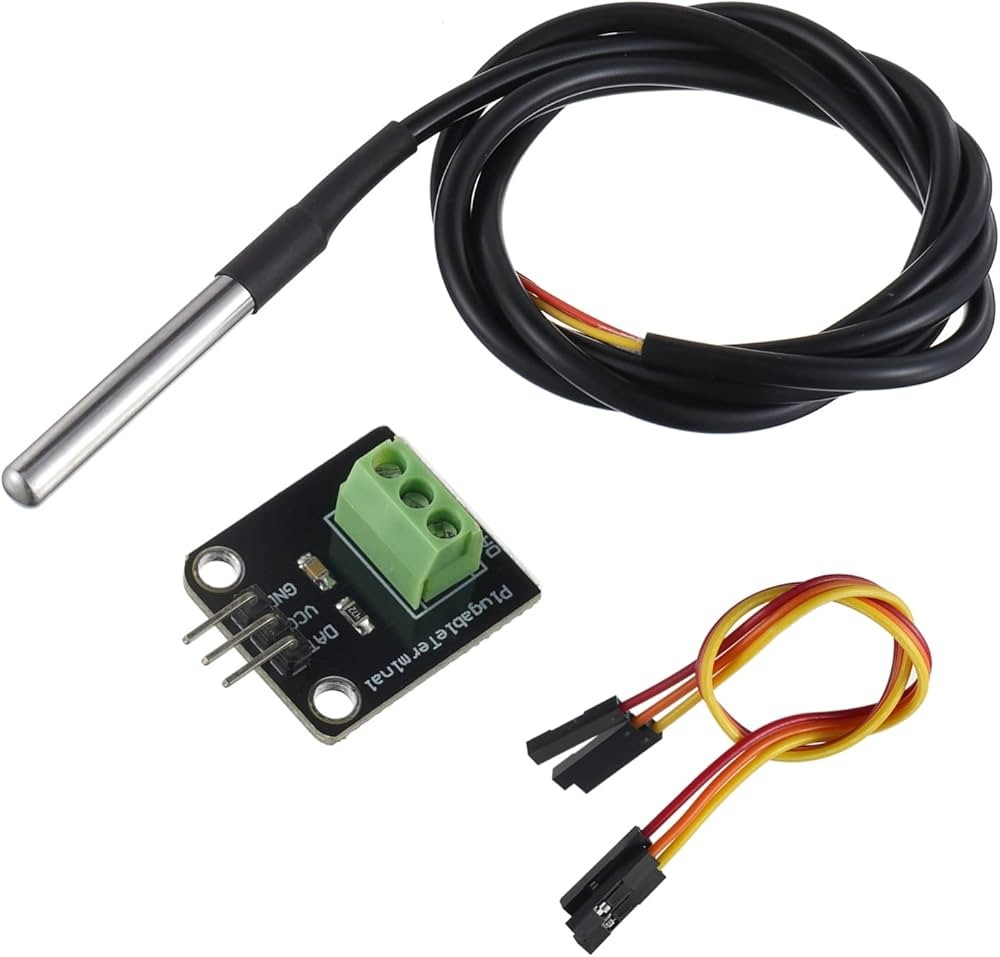
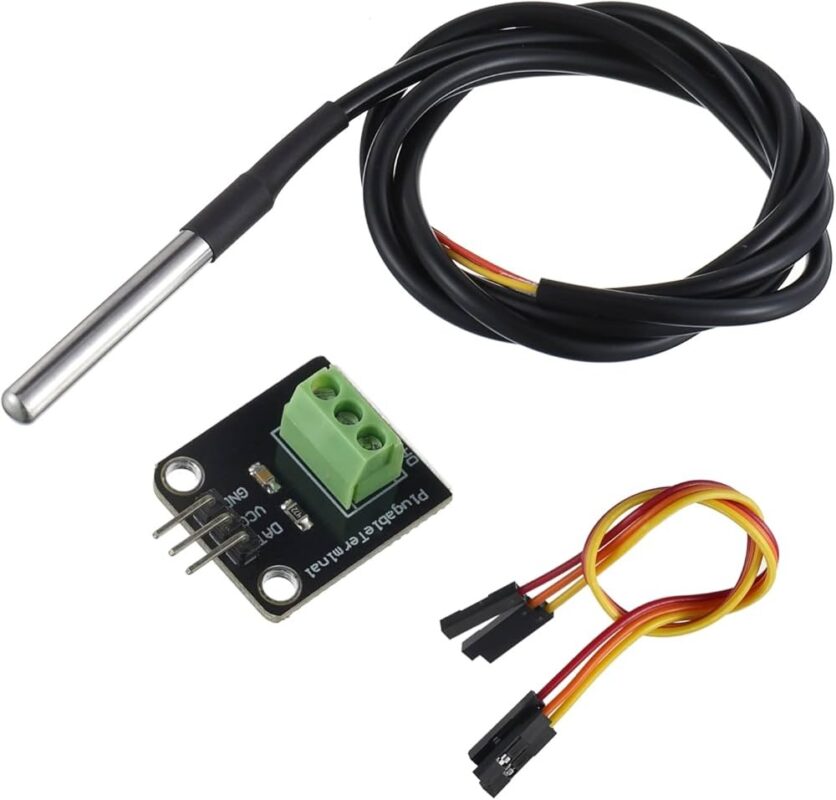
A DS18B20 probe normally uses three connections for power, ground, and the 1-Wire data signal. If your product includes a breakout module, connect according to the labels printed on the board rather than relying only on wire colours.
DS18B20 VCC  -> Arduino 5V
DS18B20 GND  -> Arduino GND
DS18B20 DATA -> Arduino Digital Pin 2
The DS18B20 data line requires a pull-up resistor. Many complete sensor modules include this resistor onboard. When using a bare DS18B20 probe, a 4.7kΩ resistor is commonly connected between the DATA line and VCC.
Arduino 5V
    |
   4.7kΩ
    |
    +------ DS18B20 DATA
               |
               +------ Arduino Pin 2
Required Arduino Libraries
A convenient way to use the DS18B20 is with the OneWire and DallasTemperature Arduino libraries.
Both libraries can be installed through the Arduino IDE Library Manager.
Arduino Example Code
#include <OneWire.h>
#include <DallasTemperature.h>

#define ONE_WIRE_BUS 2

OneWire oneWire(ONE_WIRE_BUS);

DallasTemperature sensors(&oneWire);

void setup() {
  Serial.begin(9600);

  sensors.begin();

  Serial.println("DS18B20 Temperature Sensor Ready");
}

void loop() {

  sensors.requestTemperatures();

  float temperature =
    sensors.getTempCByIndex(0);

  Serial.print("Temperature: ");
  Serial.print(temperature);
  Serial.println(" °C");

  delay(1000);
}
Example Serial Monitor Output
Temperature: 23.75 °C
Temperature: 23.81 °C
Temperature: 23.88 °C
Reading Temperature in Celsius
The DallasTemperature library can return the measured temperature directly in degrees Celsius.
float temperature =
  sensors.getTempCByIndex(0);
The index 0 refers to the first DS18B20 detected on the 1-Wire bus.
Reading Temperature in Fahrenheit
Fahrenheit readings can also be obtained directly from the library.
float temperatureF =
  sensors.getTempFByIndex(0);
Detecting Sensor Errors
A disconnected or incorrectly wired sensor may return an invalid temperature reading. With the DallasTemperature library, a common disconnected-sensor value is approximately -127°C.
if (temperature == DEVICE_DISCONNECTED_C) {
  Serial.println("DS18B20 sensor disconnected");
}
If you repeatedly receive an invalid reading, check the power connections, data wire, pull-up resistor, and cable connections.
Using Multiple DS18B20 Sensors
One of the main advantages of the DS18B20 is that multiple sensors can share a single Arduino input pin.
Arduino Pin 2
      |
      +------ DS18B20 Sensor 1
      |
      +------ DS18B20 Sensor 2
      |
      +------ DS18B20 Sensor 3
Each DS18B20 contains a unique 64-bit address, allowing the controller to identify individual sensors even when they are connected to the same 1-Wire bus.
Reading Multiple Sensors by Index
sensors.requestTemperatures();

float sensor1 =
  sensors.getTempCByIndex(0);

float sensor2 =
  sensors.getTempCByIndex(1);

float sensor3 =
  sensors.getTempCByIndex(2);
For permanent installations, using each sensor's unique address is more reliable than relying solely on index order because the detected order can potentially change.
Example: Automatic Fan Control
The DS18B20 can be used to turn on a fan when equipment temperature rises above a chosen limit.
#include <OneWire.h>
#include <DallasTemperature.h>

#define ONE_WIRE_BUS 2
#define FAN_PIN 7

OneWire oneWire(ONE_WIRE_BUS);
DallasTemperature sensors(&oneWire);

void setup() {

  Serial.begin(9600);

  pinMode(FAN_PIN, OUTPUT);

  sensors.begin();
}

void loop() {

  sensors.requestTemperatures();

  float temperature =
    sensors.getTempCByIndex(0);

  if (temperature == DEVICE_DISCONNECTED_C) {
    Serial.println("Sensor error");
    digitalWrite(FAN_PIN, LOW);
    delay(1000);
    return;
  }

  if (temperature >= 30.0) {
    digitalWrite(FAN_PIN, HIGH);
  } else {
    digitalWrite(FAN_PIN, LOW);
  }

  Serial.print("Temperature: ");
  Serial.print(temperature);
  Serial.println(" °C");

  delay(1000);
}
A fan should normally be switched through a suitable transistor, MOSFET, relay, or motor driver rather than being powered directly from an Arduino GPIO pin.
Adding Hysteresis to Temperature Control
Using separate switch-on and switch-off temperatures prevents a relay or fan from rapidly cycling when the measured temperature sits close to a single threshold.
Fan ON  at 30°C
Fan OFF at 27°C
if (temperature >= 30.0) {
  digitalWrite(FAN_PIN, HIGH);
}

if (temperature <= 27.0) {
  digitalWrite(FAN_PIN, LOW);
}
This is particularly useful in thermostats, cooling systems, heaters, and refrigeration projects.
Probe Applications
The remote probe design makes the DS18B20 particularly useful where the sensing point needs to be separated from the electronics.
- Aquarium temperature monitoring
- Water tank monitoring
- Refrigerators and freezers
- Heating and cooling systems
- PC and equipment temperature monitoring
- Greenhouses and hydroponics
- Pipe temperature measurement
- Solar hot water projects
- Environmental data logging
- Arduino and ESP32 projects
- STEM education projects
Is the Probe Waterproof?
Many DS18B20 metal probe assemblies are sold as waterproof or water-resistant probes, but the level of sealing can vary between manufacturers.
Even when the stainless-steel probe itself is sealed, the cable joint, connector, and breakout module should generally be kept dry unless the complete assembly is specifically rated for continuous immersion.
For long-term underwater installations, protect cable joints and electrical connections appropriately and verify the specifications of the exact probe being used.
Measuring Liquid Temperature
When using the probe in water or another compatible liquid, place the metal sensing section in the liquid while keeping the electrical connections protected.
DS18B20 Module
      |
      | Cable
      |
      v
Metal Probe
      |
      v
Water / Liquid
Allow sufficient time for the metal probe to reach approximately the same temperature as the surrounding liquid before relying on the reading.
Using the DS18B20 with ESP32
The DS18B20 works well with ESP32 boards and can use essentially the same OneWire and DallasTemperature libraries.
DS18B20 VCC  -> Suitable Supply
DS18B20 GND  -> ESP32 GND
DS18B20 DATA -> Suitable ESP32 GPIO
A pull-up resistor should still be present between the data line and the appropriate logic supply unless your module already includes one.
Long Cable Considerations
The 1-Wire interface can work over relatively long cables, but increasing cable length can make communication more susceptible to electrical noise, voltage drop, and signal integrity problems.
For longer installations, use good-quality cable, keep wiring away from motors and high-current switching circuits, ensure connections are secure, and avoid unnecessarily complex cable branching.
Important Usage Tips
Always confirm the pin labels or module documentation before connecting power because probe wire colours and breakout-board layouts are not guaranteed to be identical between manufacturers.
Avoid positioning the probe against a heat source unless surface temperature is specifically what you intend to measure. For air measurement, place the probe where it can reach the surrounding ambient temperature naturally.
For control systems involving heaters, refrigeration, pumps, or other equipment where a sensor failure could cause damage, include suitable independent safety protection and fail-safe behaviour rather than relying on software temperature control alone.



 Arduino Modules & Sensors
 Battery Compartments
 Component Cases
 Electronics Kits
 Microcontroller Boards
 Project Enclosures
 Shields & Hats
 Tablets
 Laptops
 Laptop Accessories
 CPU (Processor)
 CPU Coolers
 GPU (Graphics)
 HDD/ SSD (Storage)
 MOBO (Motherboard)
 PSU (Power Supply)
 RAM (Memory)
 Keyboard & Mouse Combo
 Keyboards
 Printers
 USB